 Angel Doris
WASHINGTON — Laptop users frequently encounter the perplexing phenomenon of their device fans suddenly surging to maximum speed without apparent cause, transforming a quiet workspace into an audible turbine. This unexpected increase in laptop fan activity often signals underlying performance issues, ranging from software demands to environmental factors, necessitating user attention to maintain optimal device health and longevity.
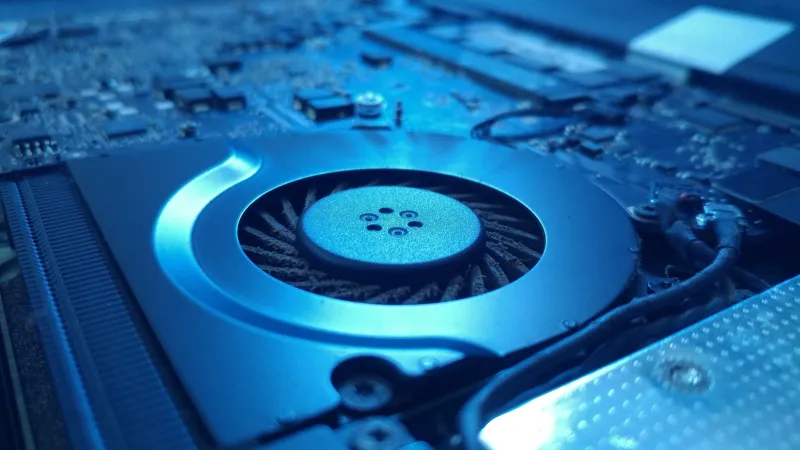
The primary function of laptop fans is to dissipate heat generated by internal components like the Central Processing Unit (CPU) and Graphics Processing Unit (GPU). When these vital parts work harder, they produce more heat, prompting the cooling system to accelerate its efforts to prevent thermal throttling or potential damage.
One common culprit behind sudden fan acceleration is resource-intensive applications. Running multiple programs simultaneously, engaging in demanding gaming sessions, or editing high-resolution video files can push a laptop hardware to its limits. These tasks require significant processing power, inevitably leading to increased heat generation and, consequently, more active laptop fans.
Physical obstructions within the cooling system represent another frequent cause. Over time, dust, lint, and pet hair can accumulate in the air vents and on the fan blades, severely impeding airflow. This insulation traps heat inside the chassis, forcing the fans to work harder and louder to compensate for the compromised cooling efficiency.
Malware infections or rogue background processes can also silently commandeer system resources, causing the CPU to operate at higher utilization rates than expected. Such hidden computational burdens generate excess heat, triggering the cooling system to respond with increased fan speeds, often unnoticed by the user until the noise becomes pronounced.
Outdated or corrupted device drivers and Basic Input/Output System (BIOS) firmware may similarly contribute to inefficient system management and thermal issues. Drivers facilitate communication between the operating system and hardware; if they are not optimized, the system might mismanage power distribution or fan controls, leading to erratic fan behavior.
Environmental conditions play a significant role. Operating a laptop in a hot room, under direct sunlight, or on soft surfaces like blankets or pillows can obstruct vents and elevate ambient temperatures around the device. Such conditions make it more challenging for the laptop to cool itself effectively, prompting its fans to work overtime.
The implications of persistently ignored fan issues extend beyond mere annoyance. Chronic overheating can lead to hardware degradation, reduced component lifespan, system instability, and even unexpected shutdowns. Proactive identification and resolution of the causes are crucial for preserving a laptops functionality.
Users can begin troubleshooting by checking their computers Task Manager on Windows or Activity Monitor on macOS. These utilities reveal which applications or processes consume the most CPU and memory resources, providing a clear indication of potential software-related thermal triggers. Closing unnecessary programs can often immediately alleviate fan noise.
Regular physical maintenance is also paramount. Gently cleaning air vents with compressed air can remove accumulated dust and debris, restoring proper airflow. For more persistent issues, professional servicing to clean internal components and potentially replace thermal paste might be necessary, as old paste can lose its efficacy.
Ensuring all operating system updates and device drivers are current is another vital step. Manufacturers frequently release updates that include performance optimizations and bug fixes, which can improve thermal management and reduce the likelihood of unexpected fan surges. For those considering hardware performance, evaluating newer models like the MacBook Pro M5 against its successors can also offer insights into thermal efficiency improvements in modern designs.
Furthermore, running comprehensive antivirus and anti-malware scans can identify and eliminate malicious software that might be covertly taxing system resources. A clean system typically runs more efficiently and generates less heat, keeping laptop fans quieter.
For users in consistently warm environments or those who frequently engage in high-demand tasks, investing in an external cooling pad can provide supplementary airflow. These pads elevate the laptop and often include additional fans to actively draw heat away from the devices chassis, offering a practical solution to persistent thermal challenges.
If these common diagnostic and maintenance steps do not resolve the issue, or if the fan noise is accompanied by performance throttling or system crashes, seeking assistance from a qualified technician is advisable. They can perform a deeper diagnostic to identify complex hardware failures that may require specialized repair.
Ultimately, understanding why laptop fans roar to life empowers users to take informed action. Proactive maintenance and thoughtful usage habits are key to ensuring that these essential cooling components function efficiently, preserving both the silence of your workspace and the longevity of your valuable technology.