 Edward DP Situmorang
REDMOND, Wash. – Many Windows PC users may be unaware their laptops or desktops frequently employ more than one graphics processing unit (GPU), a critical component dictating visual performance. Built-in Windows tools offer a straightforward pathway to identify these powerful engines, empowering users to optimize their systems for enhanced gaming experiences and demanding visual tasks. This insight is crucial for harnessing a computer's full graphical potential, ensuring peak performance across various applications in 2026.
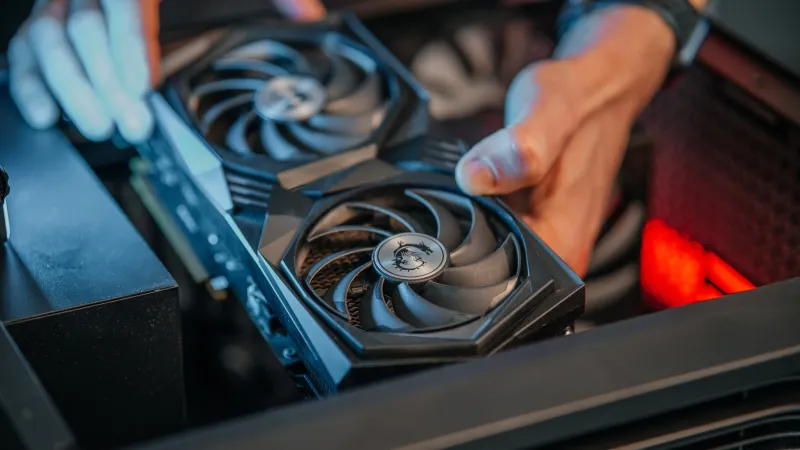
Modern portable computers, in particular, often integrate two distinct graphics processors. One is typically an integrated GPU, embedded within the central processing unit (CPU) itself, designed for power efficiency during light tasks like web browsing or document editing. The second is a discrete, more powerful GPU, a dedicated chip from manufacturers such as NVIDIA or AMD, engineered to handle graphically intensive applications, including contemporary PC gaming.
Understanding which GPU is active, and indeed, which ones are present, is paramount for enthusiasts and professionals alike. Gamers rely on the discrete GPU for smooth frame rates and high-fidelity visuals. Similarly, content creators engaged in video editing, 3D rendering, or graphic design require the robust processing power only a dedicated graphics card can provide to render complex projects efficiently.
The Windows Task Manager presents an immediate, real-time snapshot of your system's hardware utilization, including its graphics processors. This utility offers a quick verification of your system's active GPUs and their current load.
To access this information, right-click on your taskbar and select Task Manager, or simply press Ctrl+Shift+Esc. Navigate to the Performance tab. Here, you will observe various system resources listed, with a dedicated section for each detected GPU, typically labeled GPU 0, GPU 1, and so forth.
Within each GPU section, the Task Manager displays current utilization, dedicated memory, shared memory, and driver version details. Users can readily discern if their system operates with a single graphics solution or a more complex dual-GPU configuration, identifying both the integrated and discrete units by their names and usage patterns.
For a more granular view of your hardware, the Device Manager offers comprehensive details about every component connected to your system, including graphics adapters. This utility is invaluable for confirming specific model numbers and checking driver status.
To open Device Manager, right-click the Start button and select Device Manager from the context menu. Expand the Display adapters category. Here, you will find a list enumerating all graphics processors detected by your operating system, revealing their official names and confirming their presence.
This section not only identifies the specific GPU models but also allows users to check for driver issues or conflicts. A correctly functioning GPU will appear without any warning icons, indicating proper installation and driver functionality. Any yellow exclamation marks or red X symbols signal potential problems requiring attention.
For an even deeper diagnostic dive, the DirectX Diagnostic Tool, or dxdiag, provides extensive technical specifications related to your graphics hardware and DirectX components. This tool offers insights into video memory, display modes, and critical driver information.
Launch dxdiag by typing dxdiag into the Windows search bar and pressing Enter. Once the tool loads, navigate to the Display tab. If your system features multiple GPUs, you may see multiple Display tabs (e.g., Display 1, Display 2), each corresponding to a different graphics processor.
The Display tab within dxdiag details the name of the graphics card, its manufacturer, chip type, DAC type, total available graphics memory (VRAM), and current display mode. It also confirms the driver version and date, crucial information for troubleshooting performance issues or ensuring compatibility with the latest software.
While less detailed than dxdiag for graphics specifically, the System Information utility (msinfo32) provides a summarized overview of hardware resources. Users can find basic GPU information under Components > Display, offering an alternative quick reference.
The presence of multiple GPUs typically serves different purposes. Integrated graphics are energy-efficient for everyday computing, extending battery life in laptops. Discrete GPUs, conversely, prioritize raw power, consuming more energy but delivering unparalleled performance for graphically demanding tasks.
Ensuring your system leverages the correct GPU for specific applications is often a matter of configuration within graphics control panels, such as NVIDIA Control Panel or AMD Radeon Settings. These interfaces allow users to assign the high-performance GPU to particular games or software, overriding Windows default selections.
Regular updates to your GPU drivers are essential for maintaining optimal performance, stability, and compatibility with new games and applications. Manufacturers frequently release driver updates that address bugs, introduce performance enhancements, and support emerging technologies.
These built-in Windows tools demystify the internal workings of your computer's graphics subsystem. By leveraging Task Manager, Device Manager, and dxdiag, users gain a profound understanding of their machine's graphical capabilities, transitioning from passive users to informed optimizers.
Empowered with this knowledge, PC owners can troubleshoot performance bottlenecks, ensure games run at their peak, and verify that resource-intensive applications fully utilize the dedicated GPU. This proactive approach guarantees a smoother, more responsive computing experience.